
If you’re searching for ways to reduce input lag gaming, you’re likely tired of delayed reactions, missed shots, and controls that feel just a split second behind the action. In competitive and fast-paced games, even milliseconds matter — and small technical issues can make a big difference in performance.
This guide is built specifically to help you identify what’s causing input delay and how to fix it. We break down the most common sources of lag, from display settings and controller configurations to hardware limitations and in-game options, so you can make precise adjustments that actually work.
Our recommendations are based on hands-on testing across different platforms, controller setups, and multiplayer environments, combined with analysis of current gaming hardware trends and performance benchmarks. Whether you’re on console or PC, you’ll find clear, actionable steps to tighten your response time and get your gameplay feeling immediate, smooth, and competitive again.
Your controller clicks, but your character fires a heartbeat later. You lose the gunfight, miss the parry, botch the quick-time prompt. That’s input lag: the delay between action and reaction, and it’s the invisible barrier between skill and randomness. Many gamers blame “bad reflexes”—I disagree. Most setups sabotage performance. This guide delivers a step-by-step blueprint to trace every source, from controller polling rates to display processing, and reduce input lag gaming wide. Drawing on years in competitive play and hardware optimization, these methods are tournament-tested. By the end, you’ll build a 1:1 experience, extracting every millisecond your gear allows.
Understanding the Enemy: Deconstructing the Lag Pipeline
Input lag is the total time between your action—like a mouse click—and when that action appears on screen. It’s different from network lag (ping), which measures internet delay between you and a server. If you’re playing offline and things still feel sluggish, ping isn’t the villain.
Think of input lag as a three-step journey:
- Peripheral Latency – Your mouse or controller sends data at a set polling rate (how often it reports to your system). A 1000Hz mouse reports every 1ms; lower rates add delay.
- System Processing – Your CPU and GPU process the input, render frames, and manage the render queue (frames waiting to be displayed).
- Display Processing – Your monitor or TV processes the signal and updates pixels. Extra image processing can add precious milliseconds.
To reduce input lag gaming, optimize each stage—not just one (yes, it’s a team effort, like assembling the Avengers).
Your Monitor is the Battlefield: Display Optimization Secrets
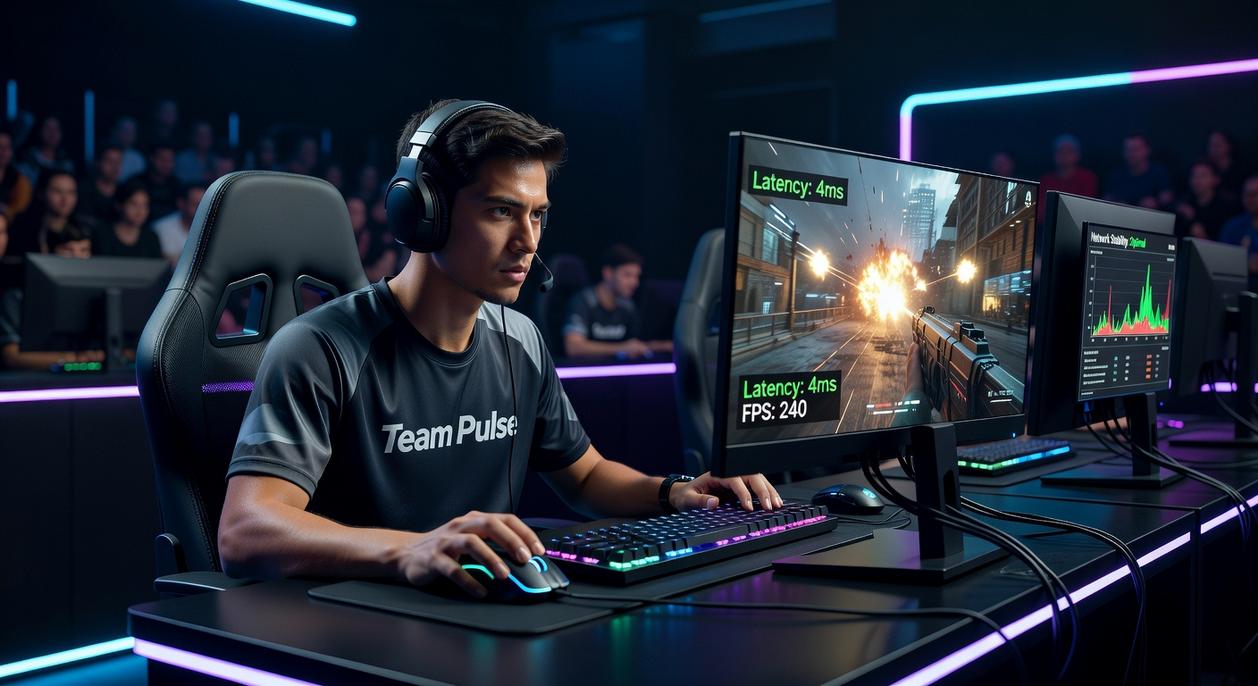
If your aim feels off by a split second, your monitor might be the culprit. In competitive games, your display isn’t just a screen — it’s the battlefield. Here’s how to optimize it.
The “Game Mode” Imperative
Turn on GAME MODE. Always.
Game Mode disables extra image processing like motion smoothing (which artificially inserts frames) and noise reduction (which “cleans” the image but adds delay). These features look nice for movies, but they increase display lag — the delay between your input and what you see on screen. Cutting them can shave off critical milliseconds. If you do only one thing to reduce input lag gaming, make it this.
Refresh Rate (Hz) vs. Frame Rate (FPS)
Refresh rate is how many times your display can update per second. Frame rate is how many frames your PC or console produces.
A 144Hz monitor refreshes 144 times per second. If your system pushes 144 FPS, motion appears smoother and more responsive than at 60Hz. Higher refresh rates mean more frequent visual updates — and that translates to tighter control (yes, you really can feel it).
Response Time (ms)
Response time measures how fast pixels change color. Lower is better. A 1ms GtG (gray-to-gray) panel reduces ghosting — that blurry trail behind moving enemies.
Clear targets = cleaner shots.
The V-Sync Trap
V-Sync removes screen tearing by forcing your GPU to wait for the monitor. The downside? Added input lag. In competitive play, TURN IT OFF.
The Modern Solution: VRR
Instead, use:
- G-Sync
- FreeSync
These Variable Refresh Rate technologies sync your display to your GPU dynamically. No tearing. Minimal added lag. That’s the win.
Taming the Machine: System-Level Tweaks for Instant Response
If you want instant response, you have to think beyond in-game sliders. System-level tweaks can shave measurable milliseconds off your setup—and in competitive play, milliseconds matter. NVIDIA reports that enabling Low Latency Mode can reduce render queue delay significantly by limiting pre-rendered frames (NVIDIA Developer Documentation). In the NVIDIA Control Panel, set Low Latency Mode to “Ultra.” On AMD GPUs, enable Anti-Lag, which AMD states can cut input-to-display latency by up to 31% in GPU-bound scenarios (AMD Performance Guide). Fewer queued frames mean what you do with your mouse happens closer to what you see.
Next: ditch traditional V-Sync. Instead, apply a frame cap 3–5 FPS below your monitor’s max refresh rate. For a 144Hz display, cap at 139–141 FPS. Why? V-Sync introduces a buffer that can add one full frame of delay (Blur Busters research). A smart cap prevents the buffer from engaging, delivering tear-free gameplay with less lag. Pro tip: use your driver-level limiter for more consistent frame pacing.
If your game supports NVIDIA Reflex, turn it on. Reflex dynamically aligns CPU and GPU workloads, and NVIDIA’s latency analyzer shows reductions of 20–30ms in supported titles like Valorant.
Finally, optimize Windows:
- Set Power Plan to High Performance or Ultimate Performance to prevent clock speed drops.
- Close background apps (browsers, overlays, launchers).
These tweaks won’t replace skill—but they remove hidden system drag. For a complete setup foundation, check out essential gaming desk setup tips for comfort and efficiency. Combine that with these changes to reduce input lag gaming at every level.
From Your Hands to the Game: Mastering Your Peripherals
First, let’s retire an old myth. Wireless peripherals are not automatically laggy. Modern 2.4GHz technologies like Logitech Lightspeed and Razer HyperSpeed transmit data so quickly that, in controlled latency tests, they’re virtually indistinguishable from wired connections (RTINGS, 2024). That said, wired still offers a foolproof, interference-free guarantee—no signal drops at a crowded local LAN or esports arena (and no panic when you forget to charge).
Next, polling rate matters. Polling rate, measured in Hertz (Hz), is how many times per second your mouse or keyboard reports its position to your PC. Set it to 1000Hz or higher in the device software to reduce input lag gaming and ensure near real-time feedback. Pro tip: double-check Windows hasn’t defaulted it lower after updates.
Finally, controller players—especially in Rocket League or FGC circles—often “overclock” their controller’s polling rate on PC, trimming native input delay for tighter, tournament-level responsiveness.
You’re no longer guessing why your shots feel late in Valorant scrims or why parries miss in Elden Ring. You’re equipped with a full checklist to audit and optimize your entire setup for responsiveness. Input lag is a hardware and software issue, not a skill issue. Fix it, and your real mechanics finally show. The only way to reduce input lag gaming is a holistic pass: display, system, peripherals tuned together for true 1:1 feel. Start now: enable Game Mode on your monitor and set a proper frame rate cap in-game. Those two tweaks often deliver the fastest, noticeable gains.
Level Up Your Performance Today
You came here to figure out how to gain a competitive edge and reduce input lag gaming without overcomplicating your setup. Now you understand how small adjustments in hardware, settings, and in-game mechanics can dramatically improve responsiveness and give you smoother, more consistent performance.
Input delay isn’t just a minor annoyance — it’s the difference between landing the shot and missing it, winning the match or falling short. When every millisecond counts, ignoring lag means holding yourself back from your true potential.
The next move is yours. Fine-tune your settings, optimize your controller and display setup, and apply these strategies consistently in your sessions. If you’re serious about sharper reactions and competitive consistency, start implementing these changes today.
Gamers trust our guides because we break down complex performance tweaks into actionable steps that actually work. Don’t let input lag cost you another match — dial in your setup now and play the way you’re meant to.