If you’re here, you’re looking for a real edge—whether that means mastering advanced multiplayer strategies, discovering standout indie titles, or learning how to optimize gaming controller settings for smoother, more responsive play. Modern gaming evolves fast, and staying competitive requires more than just practice; it demands insight into trends, mechanics, and the subtle adjustments that separate casual play from high-level performance.
This article is built to give you exactly that. We break down emerging gameplay trends, highlight innovative indie experiences worth your time, and explain practical controller configuration tweaks that can immediately improve precision and comfort. Our insights are grounded in hands-on testing, in-depth analysis of game mechanics, and continuous tracking of what’s shaping today’s gaming landscape.
Whether you’re refining your setup or exploring new strategies, you’ll find clear, actionable guidance designed to help you play smarter—and win more consistently.
Unlock Your True Potential: A Pro’s Guide to Controller Settings
“Why do I keep losing that fight?” a teammate once asked me. “It feels like my controller’s fighting me.” I’ve heard that same frustration for thousands of hours across shooters, racers, and fighters. The truth? Stock settings are generic by design (one-size-fits-none, really).
So, let’s fix that. To optimize gaming controller settings, focus on three essentials:
- Sensitivity – how fast your camera moves.
- Dead zones – the minimum stick movement before input registers.
- Button layout – mapping actions to natural finger positions.
As one pro told me, “Your controller should feel invisible.” And once it does, your gameplay transforms.
The Foundation: Mastering Deadzones and Sensitivity
If your aim feels off, it probably isn’t your reflexes. It’s your settings.
Stick Deadzone (Inner)
The inner deadzone is the small “dead” area your analog stick can move before the game registers input. Think of it like a microphone threshold—too sensitive and it picks up background noise; too high and it ignores your voice. In controllers, that “noise” is stick drift, when your character moves without you touching anything.
Here’s my preferred tuning method: lower the deadzone in-game until drift appears, then raise it by one or two points. That’s your balance between responsiveness and stability. Some players argue higher deadzones are safer long term, but I think that’s overkill. Excess cushion dulls micro-adjustments, especially in shooters. Precision should feel immediate, not delayed.
Max Input Threshold (Outer Deadzone)
The outer deadzone (often called max input threshold) controls how far you must push the stick to hit 100% movement. Lowering it means you reach full speed sooner. In racing games, this can mean faster hard turns; in shooters, quicker full rotations. Critics say it reduces fine control at the edge—but in fast-paced multiplayer, I’d rather have speed on tap.
Look & ADS Sensitivity
Hip-fire sensitivity affects general camera movement. ADS sensitivity (Aim Down Sights) governs precision aiming while zoomed.
To find your sweet spot, track a fixed point on a wall while strafing side to side. If your crosshair floats or overcorrects, adjust slightly. Repeat until movement feels smooth and controlled.
If you truly want to optimize gaming controller settings, stop copying pro presets and start testing what feels right for you. After all, who knows your thumbs better than you?
Advanced Tuning: Aim Response Curves and Acceleration
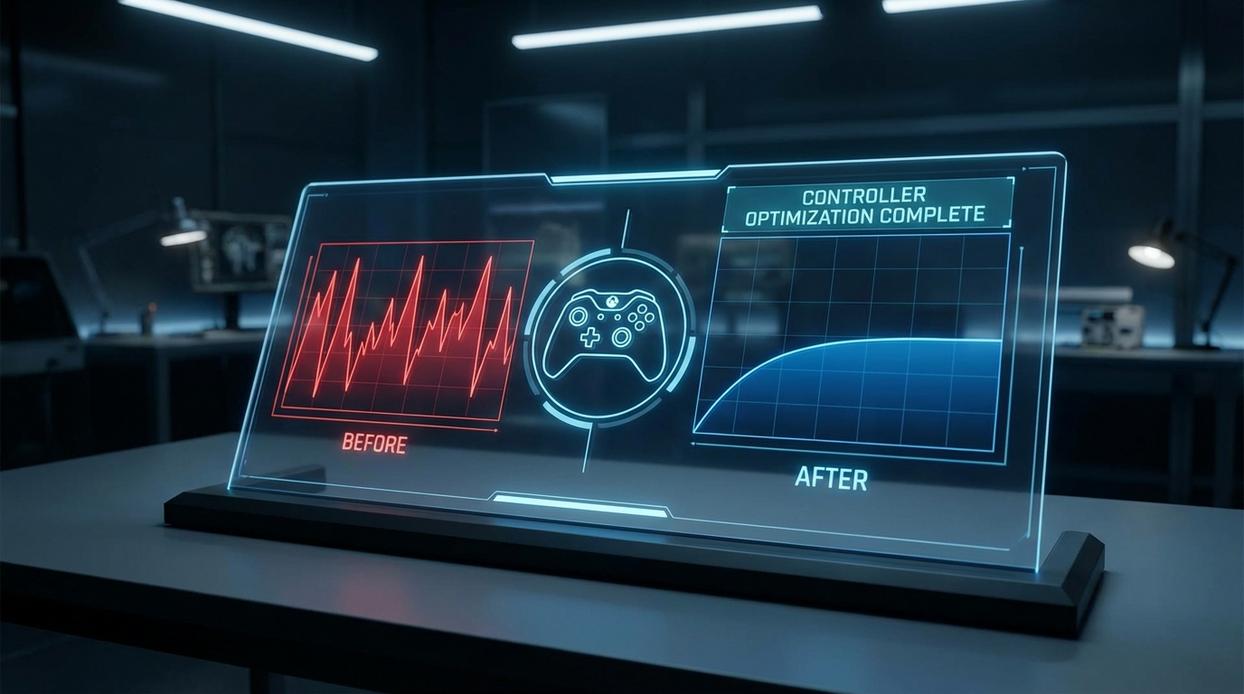
When you tweak your aim settings, you’re shaping how your stick input translates to on-screen movement. That translation pattern is called an aim response curve—the mathematical relationship between how far you move the stick and how fast your camera turns.
Let’s compare the big three side by side:
-
Linear Curve – A true 1:1 input. Push the stick halfway, get half the turn speed. Push it fully, get max speed.
-
Best for: Building raw muscle memory.
-
Tradeoff: Can feel twitchy for beginners (like driving a sports car with no traction control).
-
Dynamic Curve – An “S”-shaped curve. Small stick movements produce slower, precise turns; larger movements ramp up quickly.
-
Best for: Players who want fine aim control and fast 180-degree turns.
-
Tradeoff: Slight learning curve due to variable ramp-up.
-
Standard Curve – The default in many games. It slightly dampens initial input for smoother control.
-
Best for: Casual consistency and accessibility.
-
Tradeoff: Can feel sluggish in competitive play.
If Linear is raw and Dynamic is adaptive, Standard sits comfortably in the middle. Your choice depends on whether you value predictability or assistance.
Now, Aim Acceleration. This setting increases turn speed the longer you hold the stick in one direction. While it sounds helpful, most competitive players turn it OFF. Why? Consistency. Acceleration introduces a variable—same input, different result over time—which disrupts muscle memory (and muscle memory is everything).
If you’re trying to optimize gaming controller settings, prioritize repeatable input over artificial speed boosts. Pro tip: change one setting at a time and test for several matches before judging results.
Beyond the Sticks: Button Mapping and Haptic Feedback
Default controller layouts aren’t sacred—they’re just convenient. Strategic button remapping means customizing inputs so your thumbs stay on the analog sticks at all times (the sticks control movement and camera). The benefit? Faster reactions and tighter aim in high-pressure moments. Popular layouts like “Bumper Jumper” move jump to a shoulder button, while rear paddles can handle slide or crouch. That split-second gain can be the difference between clutch and respawn (and yes, your K/D will notice).
To optimize gaming controller settings is to reduce unnecessary hand movement. Some argue defaults are “good enough.” Sure, for casual play. But competitive players chase marginal gains—just like athletes tweaking form for a 1% edge.
Haptic feedback (controller vibration) adds physical rumble for immersion. Pro: it delivers tactile cues like recoil or nearby explosions. Con: that same motor vibration can disrupt fine motor control during precision aiming. For competitive shooters, turning it off improves consistency. For cinematic single-player games, leave it on for atmosphere.
Then there’s gyro aiming—using the controller’s internal gyroscope for motion-based micro-adjustments. In supported titles, it offers mouse-like precision and smoother tracking. The payoff? Cleaner headshots and better control—especially when paired with the right setup, like choosing the right gaming monitor for competitive play.
Putting It All Together: A Universal Tuning Process
Think of this as your repeatable checklist to optimize gaming controller settings in any title.
- Step 1: Enter training mode or a private lobby. No pressure, no scoreboard (your ego can sit this one out).
- Step 2: Calibrate stick deadzones—the minimum input needed for movement. This builds a stable foundation.
- Step 3: Set a comfortable base sensitivity for turning and camera control.
- Step 4: Fine-tune ADS (aim down sights) sensitivity for target tracking.
- Step 5: Test one response curve at a time—linear, dynamic, or classic—and feel the difference.
Change only one setting per session. Otherwise, you won’t know what actually helped.
Speculation: As competitive games evolve, expect more adaptive presets powered by player data—but manual tuning will likely stay king.
Your controller is no longer just plastic and buttons—it’s your edge.
You started here frustrated by default settings that boxed you in. Now, you know how to optimize gaming controller settings for any genre, any pace, any goal.
The payoff?
- Faster reactions
- Sharper precision
- Total control
Good players adapt. Great players personalize. Apply these tweaks, trust the process, and feel the difference in every match you play. Starting today, raise your standard.
Level Up Your Gameplay With Smarter Controller Setup
You came here to figure out how to sharpen your performance, gain a competitive edge, and stop fighting against your own controls. Now you understand how the right sensitivity, button mapping, trigger adjustments, and deadzone calibration can completely change the way you play.
Struggling with missed shots, slow reactions, or inconsistent movement isn’t a skill issue most of the time — it’s a setup issue. When your controller isn’t dialed in, every match feels harder than it should. When you optimize gaming controller settings, everything becomes smoother, faster, and more precise.
Don’t let poor configuration hold you back from ranking up or dominating your next multiplayer session. Start applying these adjustments today, test them in real matches, and fine-tune until your setup feels like a natural extension of your hands.
If you’re serious about improving, dive into more advanced controller breakdowns, strategy guides, and competitive insights from the #1 trusted source for gaming mechanics and multiplayer performance tips. Your next win starts with the right settings — lock them in now and play at your true level.